
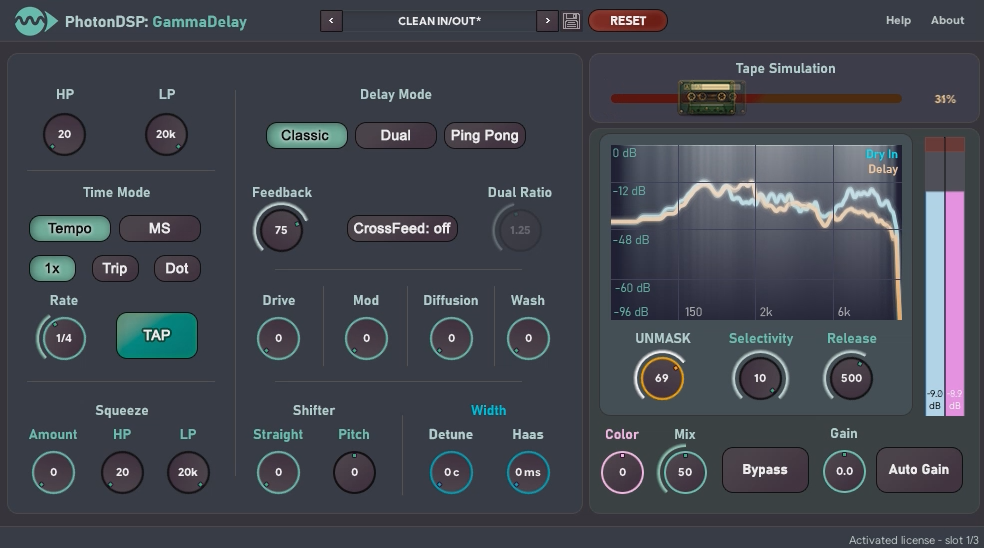
GammaDelay
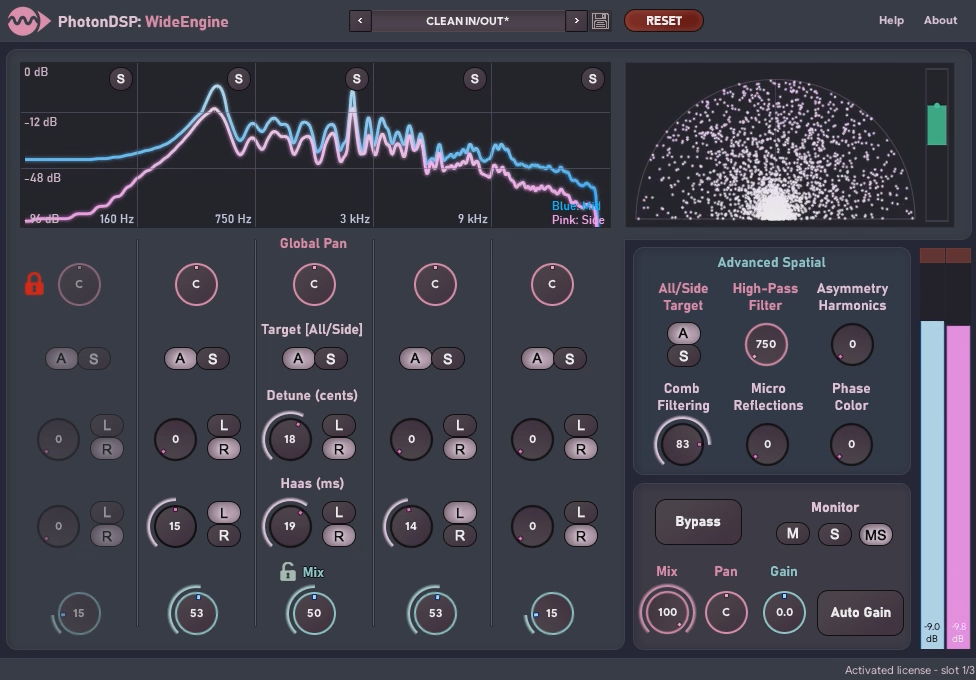
WideEngine
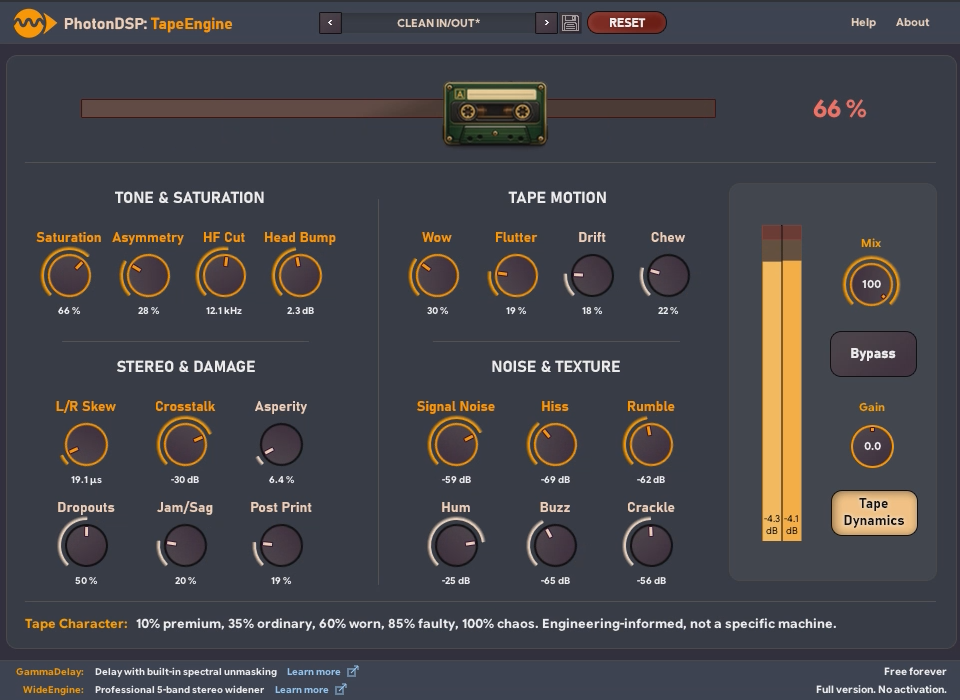
WINDOWS 64-BIT · VST3 ONLY
A feature-rich delay with spectral unmasking, deep tape modeling, and width control
64-bit VST® 3 plug-in for Windows only! Minimum system requirements: Windows 10 or later (64-bit), x86-64 CPU equivalent to Intel Core i5-3470S or better, 8 GB RAM or more, 25 MB free disk space, 1920 × 1080 display resolution or higher, VST 3-compatible 64-bit DAW, internet connection
VST is a registered trademark of Steinberg Media Technologies GmbH.

MP3 previews are provided to reduce users' data usage.
If a trial is already running, use the Activate button at the bottom of the plug-in interface to reopen this window.
The plug-ins run on Windows 10/11 x64 in 64-bit DAWs that support VST® 3. Windows on ARM, 32-bit operating systems, and 32-bit DAWs are not supported. Exact requirements are listed on each product page.
Currently, only 64-bit VST3 for Windows x64 is available. AU, AAX, 32-bit, macOS, and Linux are not currently supported, but support is planned.
One licence permits three active installations on devices owned by the licence holder. Sharing the key with third parties is not permitted, although multiple users may use the plug-in on the same device.
Licensed plug-ins do not require an internet connection during use. Internet access is required for the initial activation and to complete a product refund.
Trial versions require an internet connection both for activation and continued use.
Close every DAW and remove the corresponding VST3:
C:\Program Files\Common Files\VST3\PhotonDSP\PhotonDSP GammaDelay.vst3C:\Program Files\Common Files\VST3\PhotonDSP\PhotonDSP WideEngine.vst3For a normal reinstall, do not delete %LOCALAPPDATA%\PhotonDSP\; activation data is stored there. For a complete settings reset, first back up and then delete the relevant product’s preset folder under %APPDATA%\PhotonDSP\.
Use the support form on this website and include:
The form accepts up to eight permitted files with a combined size of up to 15 MB.
FastSpring processes PhotonDSP payments as the Merchant of Record. A FastSpring order number or receipt is not a plug-in serial number. After FastSpring confirms payment, PhotonDSP automatically shows the serial number in the purchase window and sends the same serial number to the licence e-mail entered twice on PhotonDSP before checkout. No additional post-purchase e-mail verification is required. Enter that PhotonDSP serial number in the plug-in activation window.
C:\Program Files\Common Files\VST3\PhotonDSP\.The standard folder is C:\Program Files\Common Files\VST3\PhotonDSP\. Moving VST3 files manually or choosing a non-standard folder is not recommended: your DAW may not scan it, and duplicate files may cause version-detection problems.
Install the plug-in on the new computer and activate it if a slot is available. Deleting the VST3 or local files does not release a server activation slot. Contact support to reset a slot for an old device that is no longer accessible.
Reinstalling Windows creates a new local identity and may also require the previous slot to be released.
PhotonDSP does not currently use a separate customer account. FastSpring stores the payment and order record. After FastSpring confirms payment, PhotonDSP shows the serial number in the purchase window and sends it to the licence e-mail entered twice on PhotonDSP before checkout. Store it securely: the complete serial number cannot be recovered from the server database.
If the e-mail does not arrive, check your Spam folder and contact support immediately with the purchase e-mail and FastSpring order number.
Download current versions only from the official PhotonDSP website or through an official customer download link. Support can provide a previous version only if it remains available in the archive, so keep your own copy of any installer you rely on.
Do not install old and new copies of the same VST3 at the same time.
Only the Windows x64 versions explicitly listed on each product page are supported. Windows on ARM, macOS, and Apple Silicon are not currently supported. Compatibility with a new operating system or DAW is considered confirmed only after official testing.
PhotonDSP does not currently use separate customer accounts. To change a PhotonDSP customer e-mail or merge customer records, contact PhotonDSP support, provide the old and new addresses, and verify ownership with the FastSpring order number. Changes to FastSpring payment or receipt details may require FastSpring account management or FastSpring support and do not automatically merge PhotonDSP records.
Yes. Each product has a 14-day trial that requires e-mail confirmation and an internet connection. If the online permission is not renewed, processing is suspended and the plug-in passes the unprocessed signal through.
User presets are stored here:
%APPDATA%\PhotonDSP\GammaDelay\Presets\PresetsTable.txt%APPDATA%\PhotonDSP\WideEngine\Presets\WideEnginePresets.txtClose the DAW and restore the file from a backup. Factory presets can be restored by reinstalling the current version of the plug-in.
Yes. Save presets using the plug-in’s own controls. To transfer them, close the DAW and copy the preset file from the corresponding product folder. Before replacing the file on the new computer, save a backup copy of it.
GammaDelay and WideEngine presets are not compatible with each other.
Updates are designed to preserve the plug-in identifier, parameters, and saved project state. Before updating, still save the project, user presets, and current installer, then verify a copy of the project after the update.
Do not keep old and new copies of the same VST3 in different folders at the same time.
Contact PhotonDSP support to request a refund. Support will initiate the return process. Then connect every computer on which the affected plug-in is activated to the internet, launch the plug-in, and wait until its activation is reset.
Once support confirms the required resets and refund eligibility, it can initiate the payment refund through FastSpring, PhotonDSP’s Merchant of Record. FastSpring processes the financial refund; it is not automatic.